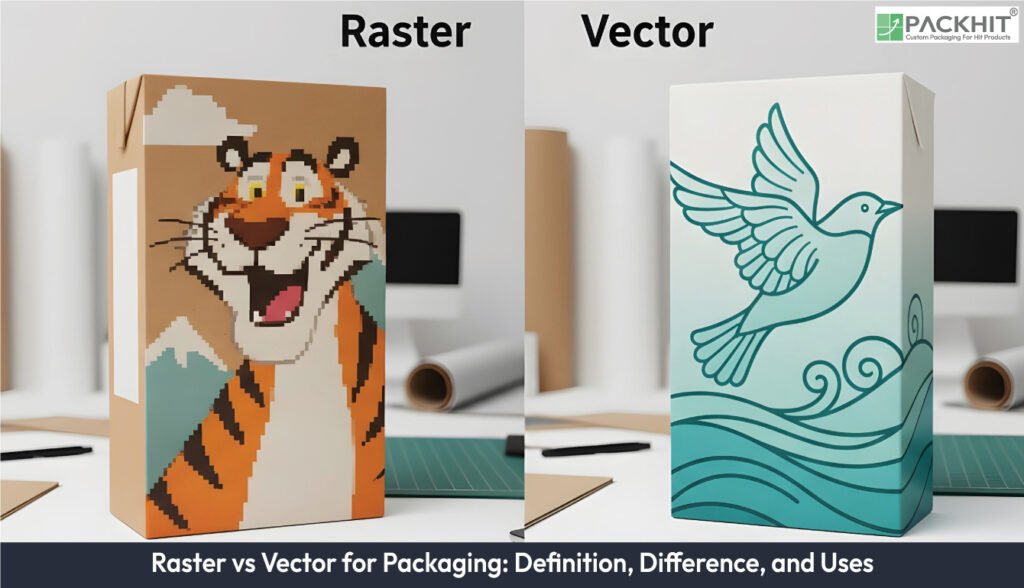
A raster image is built from pixel grids that capture colour, shading and continuous tone, making it ideal for photos but limited by resolution, which causes blur or pixelation when enlarged; it therefore requires 300 PPI at print size for clean packaging output. Raster files are large, edited in pixel-based software and suitable for photographic fidelity, though vectorisation only works well on simple shapes. In contrast, a vector image uses mathematical paths that keep edges sharp at any scale, store light file sizes and support flat colours, logos and typography through tools like Illustrator. The two formats differ in scaling behaviour, colour capability, storage weight, software use and print suitability, so packaging workflows often combine vectors for brand marks and rasters for photos. Vector artwork should be used for logos and text to retain crisp edges across SKUs, while raster artwork suits images requiring gradients and texture. Quality settings matter: rasters need 300 PPI at print size, and vectors must maintain clean paths for press accuracy. Raster-to-vector conversion involves tracing, cleanup and colour setup, whereas vector-to-raster conversion exports paths into a fixed pixel grid that cannot scale without losing clarity.
- What is a Raster Image?
- What is a Vector Image?
- How do Raster and Vector Differ in Packaging Workflows?
- 1. Scaling Behaviour
- 2. Colour and Detail
- 3. File Transfer and Storage
- 4. Software Association
- 5. Print Suitability for Large Formats
- When Should Vector or Raster be used on Packaging?
- Vector Graphics for Brand Marks and Typography
- Raster Images for Photographs and Textured Artwork
- Mixed Use Across Panels that Merge Logos and Photos
- Mixed Workflows for Combined Logo and Photo Panels
- Which File Preparation and Quality Settings Matter for Printing Packaging?
- Raster Resolution for Print Accuracy
- Print DPI Target for Packaging Panels
- Large‑format Behaviour of Raster Artwork
- How to Convert Raster to Vector for Packaging?
- 1. Image Tracing of the Raster Source
- 2. Manual Clean‑up of Paths and Colour Areas
- 3. Preparation of a Print‑ready Vector Version
- How to Convert a Vector to Raster When Required?
What is a Raster Image?
A raster image uses a fixed grid of pixels that record colour in small blocks, and this structure fits photographic and photo‑realistic artwork for print or digital layouts. Each pixel holds a colour value that forms shading, texture and continuous tone in product photos or digital paintings.
The colour data in a raster covers wide ranges and supports edits that adjust light, shade or subtle gradients. The grid creates resolution limits; pixel borders turn visible once enlarged past the native size, and those jagged edges reproduce in print if the file enters production at low resolution.
What is a Vector Image?
A vector image uses path formulas that define shape, border and fill, and this structure keeps edges crisp at any scale. The mathematical rules redraw each contour without loss of clarity, so the graphic stays sharp on cartons, sleeves or outer boxes.
Vector graphics keep file weight low because paths record fewer data points than pixel grids. The files stay consistent across sizes, and the workflow uses drawing editors such as Illustrator for path edits, spot‑colour control and clean cutlines. Vectors handle logos, icons and flat‑colour marks, if the artwork contains limited tones that do not require photographic shading.
How do Raster and Vector Differ in Packaging Workflows?
Raster and vector differ primarily by representation: raster encodes individual pixels and is resolution‑dependent, whereas vector encodes shapes mathematically and is resolution‑independent; that structural gap reshapes scaling, colour behaviour, file handling, software use and print suitability in packaging workflows.
1. Scaling Behaviour
Scaling behaviour defines how each format reacts to enlargement in packaging layouts. Raster images store pixel grids that lose sharpness when enlarged beyond native dimensions if the pixel count cannot support the new size. Vector graphics retain edge clarity at any scale because the mathematical paths recalculate outlines without adding blur. Packaging files often shift size between SKUs, so scaling behaviour governs whether a logo stays sharp on a small carton and a large outer box.
2. Colour and Detail
Colour and detail reflect what each format can represent. Raster files carry continuous tone, subtle gradients and textured shading in product photos or lifestyle images, if the resolution meets print requirements. Vector files hold flat fills and crisp boundary transitions in logos or icons, though they cannot show photographic texture. Packaging artwork often merges both: vectors protect brand fidelity, while rasters show fabric, surface or ingredient detail.
3. File Transfer and Storage
File transfer and storage depend on how each format records data. Raster files grow in size as pixel dimensions and bit depth increase, which slows upload and exchange between manufacturers, design agencies and print vendors. Vector files remain comparatively light for artwork built from paths. Packaging workflows with multiple dielines, multilingual variants or dozens of SKUs often benefit from lighter vector assets to reduce network congestion.
4. Software Association
Software association links each format to specific editing tools. Raster graphics rely on pixel editors such as Photoshop for colour correction, retouching and tonal control. Vector graphics rely on drawing editors such as Illustrator for path editing, shape creation and spot‑colour management. Packaging suppliers typically expect both file types: vectors for structural marks and rasters for photos.
5. Print Suitability for Large Formats
Print suitability for large formats changes how artwork behaves across print sizes. Raster images degrade when expanded for signage, display stands or oversized cartons if the pixel count cannot support the physical dimensions. Vector artwork maintains clarity across every size, which preserves barcode shapes, brand marks and regulatory text on packaging that spans multiple physical formats.
When Should Vector or Raster be used on Packaging?
The choice between vector artwork and raster artwork depends on how each format records shape, colour and detail, and the sections below define their roles for brand marks, typography, photographs and textured graphics:
Vector Graphics for Brand Marks and Typography
Vector graphics use path formulas that maintain edge clarity at any size, which keeps logos, icons and letterforms consistent across cartons, sleeves and outer boxes. Vector graphics keep file weight low for artwork exchange across suppliers, if the design contains flat colours, line shapes or geometric contours. Vector assets scale without quality loss on multiple SKUs, and they hold spot‑colour assignments that protect brand consistency on print presses.
Raster Images for Photographs and Textured Artwork
Raster images record colour per pixel and capture continuous tone in product photos, lifestyle scenes and textured materials such as fabric or food surfaces. Raster images retain tonal variation at 300 PPI at print size, if the source file contains enough pixel data for clean gradients. Raster inputs lose clarity when enlarged beyond native size, and this affects readability on cartons, pouches and sleeves where pixel borders appear on press.
Mixed Use Across Panels that Merge Logos and Photos
Packaging panels often combine vector logos and raster photos because each format handles different visual tasks, and this mix keeps brand contours clean while preserving photographic detail in hero images.
Mixed Workflows for Combined Logo and Photo Panels
Mixed workflows merge vector brand elements with high‑resolution raster photographs, and this pairing keeps logos sharp while retaining photographic texture. Mixed workflows often appear on front panels that display a vector logo plus a raster hero image; designers supply each file type in its native format to maintain reproducible colour, contour control and placement accuracy.
Which File Preparation and Quality Settings Matter for Printing Packaging?
Print outcome depends on input resolution and format capability; check the asset type and supply the corresponding technical quality.
Raster Resolution for Print Accuracy
Raster resolution controls print accuracy because pixel grids lose clarity once scaled beyond their native dimensions. Raster resolution at 300 PPI at print size preserves colour transitions in product photos and lifestyle images, if the source file contains sufficient pixel data.
Print DPI Target for Packaging Panels
Print DPI target keeps packaging panels free from visible jagged edges. Print DPI target at 300 DPI aligns with press requirements that reproduce pixel‑based inputs at consistent sharpness across cartons, sleeves and pouches.
Large‑format Behaviour of Raster Artwork
Large‑format behaviour of raster artwork depends on pixel dimensions because low‑resolution inputs degrade when expanded for shippers, display boxes or pallet wraps. Large‑format behaviour improves only when the raster contains large pixel counts that withstand enlargement without breaking tonal detail.
How to Convert Raster to Vector for Packaging?
To convert raster to vector for packaging, follow the steps given below:
1. Image Tracing of the Raster Source
Image tracing starts the conversion. A designer runs a trace command in vector software to translate pixel clusters into paths. This step detects edges and shape boundaries in the raster image if the file contains clear tonal separation. Packaging assets with simple contours traced with fewer errors than photographic inputs.
2. Manual Clean‑up of Paths and Colour Areas
Manual clean‑up corrects the automated trace. A graphics team edits nodes, adjusts curves and groups flat fills. Complex photographs, for example, ingredients or textile textures, convert into approximate shapes during this step. The clean‑up produces a vector graphic that retains brand geometry but drops continuous tone.
3. Preparation of a Print‑ready Vector Version
Print‑ready preparation sets path order, assigns spot or process colours and removes artefacts that cause issues on press. The output suits logos, icons and structural marks that demand clear edges on cartons, sleeves or pouches. Photographic depth does not transfer because vector paths cannot store per‑pixel shading.
Submit high‑resolution raster input to the graphics team to improve edge detection. Larger pixel counts reduce trace noise and allow more accurate colour sampling during conversion.
How to Convert a Vector to Raster When Required?
To convert a vector to raster, export the path‑based artwork into a fixed pixel grid that replaces curves with discrete colour blocks, and this step creates a static resolution that cannot retain clarity once enlarged. The raster file records pixels instead of formulas, so the final image reacts like any other bitmap image.
Perform rasterisation at 300 PPI for packaging panels, if the press RIP takes pixel data, because this PPI value keeps edges readable at print size and reduces downsampling artefacts in barcodes, small text and flat‑colour shapes. A higher PPI adds file weight without extra visible detail, while a lower PPI introduces blur in cartons, sleeves and pouches.